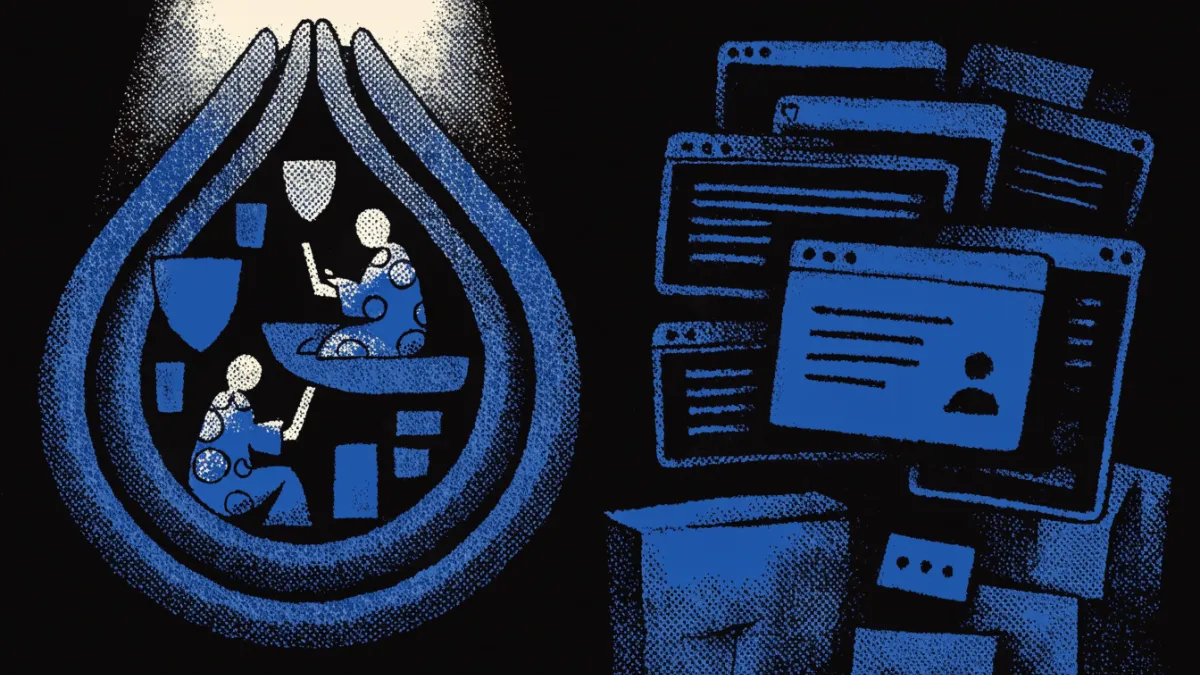
Tor Browser on Android offers robust privacy by isolating websites, preventing tracking, and automatically clearing cookies after browsing. It does not collect personal data like IP addresses or browsing history. Users can enhance security by adjusting levels from Standard to Safest, which disables features like JavaScript. Key points include:
What is Tor and How Does It Work?
The Tor network is designed to enhance online privacy and anonymity by routing internet traffic through a series of volunteer-operated servers, known as nodes. This process, referred to as onion routing, encrypts the data multiple times before it reaches its destination, making it difficult to trace back to the user. The primary purpose of Tor is to allow individuals to browse the internet without revealing their identity or location.
Tor achieves anonymity in several ways. First, it masks the user's IP address by routing traffic through several nodes before reaching the exit node, which connects to the internet. This means that no single node knows both the source and destination of the data, enhancing privacy. Additionally, Tor Browser isolates each website visited, preventing third-party trackers and ads from following users across different sites. After browsing, it automatically clears cookies, further protecting user data[1].
The Tor network's size is significant, with thousands of volunteer-operated servers worldwide. As of recent estimates, Tor has over 7,000 relays and more than 2 million daily users[3]. This extensive network contributes to its effectiveness in maintaining user anonymity.
Tor's default security level is set to 'Standard', which blocks many common privacy threats and enables HTTPS-only mode by default[4]. For users seeking enhanced security, Tor offers additional levels: 'Safer' and 'Safest', which disable certain browser features to protect against potential attacks[3]. However, it is essential to practice caution when using Tor. Common mistakes that can lead to deanonymization include providing personal information on websites or using untrusted devices[5].
In summary, Tor provides a robust framework for maintaining privacy online, leveraging encryption and a decentralized network to shield users from surveillance and tracking. Understanding how it works is crucial for maximizing its benefits and protecting your online identity.
Installing Tor on Android and iOS
To enhance your mobile privacy using Tor, follow these steps to download and install the Tor Browser on both Android and iOS devices.
For Android
- System Requirements: Ensure your device runs Android 5.0 (Lollipop) or later.
- Download: Visit the Google Play Store or the official Tor Project website. Search for "Tor Browser" and click on the install button.
- Installation: Once downloaded, open the app. You may need to grant permissions for the browser to function correctly.
- Configuration: Follow the on-screen instructions to connect to the Tor network. You can choose to connect directly or configure bridges if you are in a restricted area.
For iOS
- System Requirements: Your device should be running iOS 11.0 or later.
- Download: Open the App Store and search for "Onion Browser," which is the official Tor Browser for iOS. Download and install the app.
- Installation: After the installation, launch Onion Browser and accept any required permissions.
- Configuration: Similar to Android, follow the prompts to connect to the Tor network. You can also adjust settings to enhance your privacy.
Compatibility and Security
Both versions of the Tor Browser are designed to protect your anonymity by blocking third-party trackers and ads, as well as ensuring that no personal data like IP addresses or browsing history is collected[2]. It’s essential to keep your browser updated to maintain security and privacy features.
Using Tor Browser on mobile devices allows you to browse the internet with enhanced privacy, but remember to adjust the security level based on your needs. The default 'Standard' security level provides robust protection by blocking many common threats[4]. You can increase this to 'Safer' or 'Safest' for additional security, which may disable certain features like JavaScript[3].
For further details and to download the latest versions, you can visit the official Tor Project website: Tor Project.
Understanding Security Levels in Tor
Tor Browser offers three distinct security levels: Standard, Safer, and Safest. Each level adjusts the browser's features to enhance privacy and security, allowing users to choose the level of protection that suits their needs.
Standard
The default setting, Standard, provides a solid foundation for privacy. It blocks many common privacy threats, such as third-party trackers and advertisements, and enables HTTPS-only mode by default. This level is suitable for general browsing, allowing users to access most websites without significant restrictions while maintaining a reasonable level of anonymity[4].
Safer
Increasing the security to Safer disables certain features that could be exploited by attackers. For instance, it blocks scripts on untrusted sites, which can prevent malicious code from executing. This level is ideal when accessing potentially harmful sites or when additional caution is needed, such as when using public Wi-Fi. Users should be aware that some websites may not function properly due to the blocking of scripts[3].
Safest
The Safest level offers the highest degree of security by disabling JavaScript entirely on all sites. This setting significantly enhances privacy but can limit the functionality of many websites, as JavaScript is commonly used for interactive features. Use this level when accessing sensitive information or when maximum anonymity is required. However, be prepared for a potentially less user-friendly browsing experience[3].
When to Use Each Level
- Standard: Everyday browsing, general use of social media, and accessing news sites.
- Safer: Visiting sites that may host malicious content or when on public networks.
- Safest: Accessing sensitive information, communicating securely, or when anonymity is paramount.
Adjusting security levels in Tor Browser can greatly affect your browsing experience and overall privacy. By understanding these levels, you can tailor your protection based on your specific needs and the risks you face while online.
Tor vs VPN: Which is Better for Mobile Privacy?
When considering mobile privacy, both Tor and VPNs serve distinct purposes and have unique functionalities. Understanding their differences can help you choose the right tool for your needs.
Tor is designed primarily for anonymity. It routes your internet traffic through multiple volunteer-operated nodes, using onion routing to encrypt data. This process masks your IP address and isolates each website you visit, preventing third-party trackers and ads from following you[1]. Tor Browser for Android does not collect or transmit personal data like IP addresses, browsing history, or device IDs[2]. It also provides different security levels, allowing users to enhance privacy by disabling features like JavaScript at the 'Safest' level[3].
VPNs, on the other hand, create a secure tunnel between your device and the internet, encrypting your data and masking your IP address. While this can protect your information from hackers, especially on public Wi-Fi, it does not isolate your browsing sessions like Tor does. A VPN provider can potentially see your traffic, which raises concerns about trustworthiness[6].
Scenarios for Use
Choosing between Tor and a VPN depends on your specific needs:
Use Tor when:
- You require high levels of anonymity, such as when discussing sensitive topics or accessing restricted content.
- You want to avoid tracking by websites and advertisers.
- You're comfortable with slower speeds, as Tor can be significantly slower due to its multiple layers of encryption.
Use a VPN when:
- You prioritize speed and want to stream content or download files securely.
- You need to bypass geo-restrictions without the anonymity concerns of Tor.
- You are in a country with heavy internet censorship and require a straightforward solution to access the internet safely.
Performance and Privacy Implications
While Tor provides excellent anonymity, it can be slower due to the multiple nodes your data passes through. According to some reports, Tor can slow down browsing speeds by up to 50% compared to regular browsing[5]. VPNs generally offer faster speeds because they typically involve a single encrypted connection.
In terms of privacy, Tor is often considered superior because it does not log user activity or personal data[2]. However, if you use a VPN in conjunction with Tor, you must choose a trustworthy VPN provider to avoid exposing your data[6]. The Tor Project advises caution in using VPNs with Tor, as they can introduce additional vulnerabilities[7].
In conclusion, both Tor and VPNs have their advantages and disadvantages, and your choice should depend on your specific privacy needs and browsing habits.
Common Mistakes That Deanonymize Users
Using Tor can significantly enhance your online privacy, but certain mistakes can compromise your anonymity. Here are common errors made by Tor users and tips on how to avoid them.
Providing Personal Information
One of the biggest mistakes is sharing personal information on websites while using Tor. This can include signing up for accounts with your real name or email address. Once this information is linked to your identity, it can be used to deanonymize you. Always use pseudonyms and temporary email addresses when required to register on sites.
Using Untrusted Devices
Accessing Tor from devices that are not secure can expose you to risks. For example, public computers or devices that have malware can leak your information. It is best to use your own device, ensuring it is free from malware and vulnerabilities.
Enabling Browser Plugins
Many users often think that adding browser plugins can enhance their experience. However, this is a significant risk with Tor. Plugins can expose your IP address or other identifying information. Stick to the default settings of Tor Browser, which is designed to protect your anonymity[5].
Ignoring Security Levels
Tor Browser offers three security levels: Standard, Safer, and Safest. Many users do not adjust these settings according to their needs. For example, using the 'Safest' level disables JavaScript, which can protect against certain attacks, but it may limit functionality on many websites[3]. Understand the implications of each level and adjust them based on your browsing activity.
Downloading Files
Opening files downloaded through Tor can lead to exposure. For instance, if a document contains links to the internet, it may reveal your IP address when opened. Tor Browser warns users before opening such documents[5]. Always be cautious and avoid downloading unless necessary.
Torrenting Over Tor
Using Tor for torrenting is highly discouraged. This practice can easily expose your IP address, as torrents do not route through the Tor network effectively. If you need to download files, consider using a VPN designed for torrenting instead[8].
Conclusion
By avoiding these common mistakes, you can significantly enhance your anonymity while using Tor. Educate yourself on best practices and remain vigilant about your online activities to ensure your privacy remains intact.
Browser Fingerprinting and How to Mitigate It
Browser fingerprinting is a technique used to track users by collecting information about their browser and device configurations. This data can include details such as screen resolution, installed fonts, and even the version of the operating system. Unlike cookies, which can be deleted, fingerprinting can persistently identify users across sessions, making it a significant concern for Tor users seeking anonymity.
For Tor users, browser fingerprinting poses a risk because it can undermine the privacy protections offered by the Tor network. While Tor Browser helps isolate your browsing sessions and does not collect personal data like IP addresses or browsing history[2], it is still possible for a determined attacker to create a unique fingerprint that can link your activity back to you. This risk is amplified on mobile devices, where users may have less control over their browser configurations compared to desktop environments.
To mitigate fingerprinting risks on mobile devices while using Tor, consider the following strategies:
Use the Tor Browser’s Security Levels
The Tor Browser allows users to adjust security levels to enhance privacy. Increasing the security to 'Safer' or 'Safest' can help minimize the risk of fingerprinting by disabling or limiting certain features, such as JavaScript, which is commonly used in fingerprinting techniques[3].
Avoid Personal Accounts
Refrain from logging into personal accounts while using Tor. This includes social media or email accounts linked to your real identity. Using pseudonyms and temporary email addresses can help maintain anonymity and reduce the chance of being fingerprinted.
Disable JavaScript
Consider setting the security level to 'Safest,' which disables JavaScript entirely on all sites. While this may hinder functionality on some websites, it significantly reduces the risk of being tracked through fingerprinting[3].
Regularly Clear Browser Data
Although Tor Browser automatically clears cookies after each session, it’s advisable to periodically check and clear any stored data, especially when switching between different browsing contexts.
Limit Add-ons and Extensions
Many users mistakenly believe that browser extensions can enhance their privacy. However, these can often introduce vulnerabilities and increase the likelihood of fingerprinting. Stick to the default settings in Tor Browser and avoid unnecessary add-ons[5].
By understanding browser fingerprinting and implementing these strategies, you can enhance your mobile privacy while using Tor on Android and iOS. For more detailed techniques on preventing fingerprinting, consider reviewing additional resources like How to Prevent Browser Fingerprinting: Effective Strategies.
Using Tor Safely on Public Wi-Fi
Using Tor on public Wi-Fi networks can pose several risks to your privacy and security. Public networks are often less secure, making them attractive targets for hackers who can intercept your data. Here are some safety tips and best practices to ensure secure browsing when using Tor on these networks.
Understand the Risks
When connected to public Wi-Fi, your data can be vulnerable to interception. Attackers may employ techniques such as Man-in-the-Middle (MitM) attacks to monitor or manipulate your internet traffic. This is particularly concerning if you are accessing sensitive information or logging into accounts.
Best Practices for Secure Browsing
Use a VPN with Tor: While Tor itself offers strong anonymity, combining it with a trustworthy VPN can add an extra layer of security. A VPN encrypts your internet traffic, making it harder for attackers to intercept your data[6]. However, ensure that the VPN provider is reputable, as they can potentially see your traffic.
Increase Your Security Level: Adjust the security settings in the Tor Browser to a higher level. The 'Safer' or 'Safest' settings disable certain features that could be exploited, such as JavaScript, enhancing your protection against attacks[3]. This is particularly important on public networks where security is compromised.
Avoid Sensitive Transactions: Refrain from conducting sensitive transactions, such as online banking or accessing personal accounts, while on public Wi-Fi. If you must access these services, consider using a more secure network.
Disable Automatic Connections: Turn off automatic connections to public Wi-Fi networks on your device. This prevents your device from connecting to potentially malicious networks without your knowledge.
Monitor the Network: Before connecting, verify the network name and avoid connecting to networks that seem suspicious or unfamiliar. Attackers often create fake Wi-Fi hotspots with names similar to legitimate networks.
Be Cautious with Downloads: Avoid downloading files while on public Wi-Fi, as these could contain malware. If you must download something, ensure it is from a trusted source and scan it for viruses.
Regularly Update Your Software: Keep your Tor Browser and device operating system updated to protect against vulnerabilities. Updates often include security patches that help safeguard your browsing experience.
By following these practices, you can enhance your privacy and security while using Tor on public Wi-Fi networks. Always remain vigilant and prioritize your online safety, especially in environments where risks are elevated.
Additional Privacy Tools to Use with Tor
Using Tor enhances your online privacy, but you can further bolster your security with complementary tools and applications. Here are some recommended options:
VPNs
A Virtual Private Network (VPN) can provide an additional layer of anonymity when using Tor. By encrypting your internet traffic, a VPN makes it harder for outsiders to intercept your data. However, it’s crucial to choose a trustworthy VPN provider, as they can see your traffic. The combination of VPN and Tor can offer enhanced privacy, but caution is advised, as using certain VPNs may introduce vulnerabilities[6][7].
Password Managers
Password managers store and encrypt your passwords, making it easier to use strong, unique passwords for different sites. This helps prevent credential stuffing attacks and minimizes the risk of account breaches. When using Tor, a password manager can ensure that you never have to expose your passwords, especially on less secure sites.
Encrypted Messaging Apps
For private communication, consider using encrypted messaging apps like Signal or Telegram. These applications offer end-to-end encryption, ensuring that only the intended recipient can read your messages. Using such apps while browsing with Tor can reduce the risk of your conversations being intercepted or monitored.
Anti-Malware Tools
Implementing reliable anti-malware software on your device can help protect against malicious attacks. While Tor offers anonymity, it doesn't provide protection against malware. Keeping your device secure from viruses and spyware is essential, especially when accessing potentially risky websites.
Secure File Sharing Services
If you need to share files securely, consider using encrypted file-sharing services. Tools like Tresorit or ProtonDrive offer end-to-end encryption for files, ensuring that only you and the intended recipient can access the data. This is particularly important when sharing sensitive information over the Tor network.
Browser Fingerprinting Protection Tools
To mitigate risks associated with browser fingerprinting, consider using tools that enhance privacy. Browser extensions like Privacy Badger or uBlock Origin can block trackers and ads, reducing the amount of data collected about your browsing habits. While Tor Browser already incorporates some of these protections, additional tools can further enhance your privacy[1][4].
By integrating these tools into your browsing routine, you can significantly strengthen your security and privacy while using Tor on Android and iOS. Always remember to stay informed about the latest privacy practices and adapt your tools accordingly.
Troubleshooting Common Issues with Tor on Mobile
Using Tor on mobile devices can enhance your privacy, but you may encounter some common issues. Here are potential problems and their solutions to help you navigate using Tor effectively.
Connection Problems
If you experience difficulty connecting to the Tor network, first ensure that your internet connection is stable. If you're on a public Wi-Fi network, it may restrict access to the Tor network. Switching to a different network or using mobile data can resolve this issue. If the problem persists, try restarting the Tor Browser or your device.
Slow Browsing Speed
Tor can sometimes slow down your browsing speed due to the way it routes your traffic through multiple nodes. If you notice significant lag, consider adjusting your security level. Lowering the security to 'Standard' may improve speed, but keep in mind that this can reduce privacy protections[4]. If you want to maintain privacy, patience is often necessary when using Tor.
Inability to Access Certain Websites
Some websites may block Tor traffic, making them inaccessible. If you encounter this issue, consider using bridges, which are alternative entry points to the Tor network. You can request bridges through the Tor Browser settings. This can help bypass censorship and improve access to restricted sites.
Document Handling Warnings
When opening documents that may contain external links, Tor Browser will issue a warning to prevent potential IP address leaks. Always heed these warnings and avoid opening such documents unless necessary[5]. If you must open a document, consider doing so on a separate, non-Tor browser.
Security Level Adjustments
Users may need to adjust the security level to balance privacy and usability. The 'Safer' and 'Safest' levels disable certain features that can increase security but may also limit website functionality. If you find that some websites are not working properly, switching back to 'Standard' can help, but be aware of the trade-off in privacy[3].
Support Resources
If you encounter issues not covered here, the Tor Project offers comprehensive support resources. The official Tor support page provides guides and FAQs that can help troubleshoot specific problems. Additionally, community forums can be a valuable resource for finding solutions to unique issues.
By understanding these common problems and their solutions, you can enhance your experience while using Tor on mobile devices. Always stay informed about best practices to maintain your privacy effectively.
Checklist for Safe Tor Usage on Mobile Devices
| Step | Description | Importance | Notes |
|---|---|---|---|
| 1 | Use Tor Browser | Ensures website isolation and cookie cleaning | Automatically clears cookies after each session [1] |
| 2 | Adjust Security Level | Enhances protection against attacks | Options: Standard, Safer, Safest [3] |
| 3 | Avoid Personal Info | Prevents deanonymization | Common mistake among users [5] |
| 4 | Limit Add-ons | Reduces fingerprinting risks | Extensions can introduce vulnerabilities [5] |
| 5 | Use Trusted VPN | Adds extra anonymity layer | Choose reputable providers [6] |
| 6 | Avoid Public Wi-Fi | Protects against data interception | Public networks are less secure |
| 7 | Regularly Update Software | Fixes vulnerabilities | Keep Tor and OS updated |
| 8 | Be Cautious with Downloads | Prevents malware infections | Only download from trusted sources |
| 9 | Monitor Network Connections | Avoids malicious hotspots | Verify network names before connecting |
| 10 | Heed Document Warnings | Prevents IP leaks | Tor warns before opening external documents [5] |
Conclusions
- Using the Tor Browser on mobile devices significantly enhances your privacy and anonymity online.
- Adjusting the security level to 'Safer' or 'Safest' can provide better protection against potential threats.
- Avoid conducting sensitive transactions on public Wi-Fi networks to minimize the risk of data interception.
- Combining Tor with a reputable VPN can add an extra layer of security, but choose your VPN provider carefully.
- Regularly update your Tor Browser and operating system to protect against vulnerabilities.
To further understand the risks associated with browser fingerprinting and how to mitigate them, check out our guide on How to Prevent Browser Fingerprinting: Effective Strategies.
FAQ
Is using Tor on Android safe?
Using Tor on Android is generally safe, as the Tor Browser isolates each website you visit to prevent third-party trackers from following you. It does not collect personal data such as IP addresses or browsing history, ensuring that your information remains private[2]. However, users should still exercise caution, especially when using public Wi-Fi networks.
Can FBI track Tor Browser?
While Tor provides a high level of anonymity, it is not completely untraceable. Law enforcement agencies, including the FBI, can potentially track Tor users through various methods, such as monitoring exit nodes or exploiting vulnerabilities. Maintaining good security practices helps reduce the risk of being tracked.
Is the Tor Browser actually private?
The Tor Browser is designed to enhance privacy by routing your internet traffic through multiple nodes, making it difficult to trace. It blocks many known privacy issues and cleans cookies after each session, which helps maintain anonymity[1]. However, users must still be cautious about sharing personal information online.
What are the best practices for using Tor on mobile devices?
Best practices for using Tor on mobile devices include adjusting the security level to 'Safer' or 'Safest' to enhance protection, avoiding personal information on websites, and being cautious with downloads. Additionally, regularly updating your software and avoiding public Wi-Fi can help safeguard your privacy[5].
How does Tor compare with a VPN for privacy?
Tor and VPNs serve different purposes in privacy protection. Tor provides anonymity by routing traffic through multiple nodes, while a VPN encrypts your internet traffic, adding a layer of security. Using a VPN with Tor can enhance anonymity, but it is crucial to choose a reputable VPN provider, as they can see your traffic[6].
What common mistakes do users make when using Tor?
Common mistakes include providing personal information on websites, using untrusted devices, and enabling browser plugins, which can expose users to tracking[5]. Users should also avoid torrenting over Tor, as it can compromise their anonymity and reveal their IP address.
How can I protect myself from browser fingerprinting while using Tor?
To protect against browser fingerprinting while using Tor, limit the use of browser extensions and avoid customizing your browser settings excessively. The Tor Browser already incorporates features to reduce fingerprinting risks, but maintaining a standard configuration helps further enhance your anonymity[1].
Explore More Privacy Resources
Discover additional guides to enhance your online privacy.
View More ArticlesBibliography
- Tor Browser for Android — Tor
- Privacy Policy - Tor Project
- Security levels - Features - Tor Browser - Support
- How to: Use Tor on Android and iPhone | Surveillance Self-Defense
- Tor Browser best practices - Security - Tor Browser — Tor
- Choosing the VPN That's Right for You | Surveillance Self-Defense
- Tor Project: FAQ
- Anonymize your connections and communications - Security in a Box